
DaVinci Resolve in 2026: Why Video Creators Are Choosing This Editing Software
Video content has become an important part of the internet. YouTube videos, social media clips, advertisements, documentaries, online courses, and professional films all depend on video-editing software.
There are many editing applications available, but one name continues to attract attention from beginners and professionals: DaVinci Resolve.
Developed by Blackmagic Design, DaVinci Resolve is an all-in-one video-production application that combines editing, color grading, visual effects, motion graphics, and audio post-production.
One of its biggest advantages is that it offers a free version with a substantial collection of professional tools.
This means beginners can start learning video editing without immediately paying for expensive software.
But is DaVinci Resolve really worth using in 2026? What makes it different from other editing applications, and should you choose the free or Studio version?
Let's explore everything you need to know.
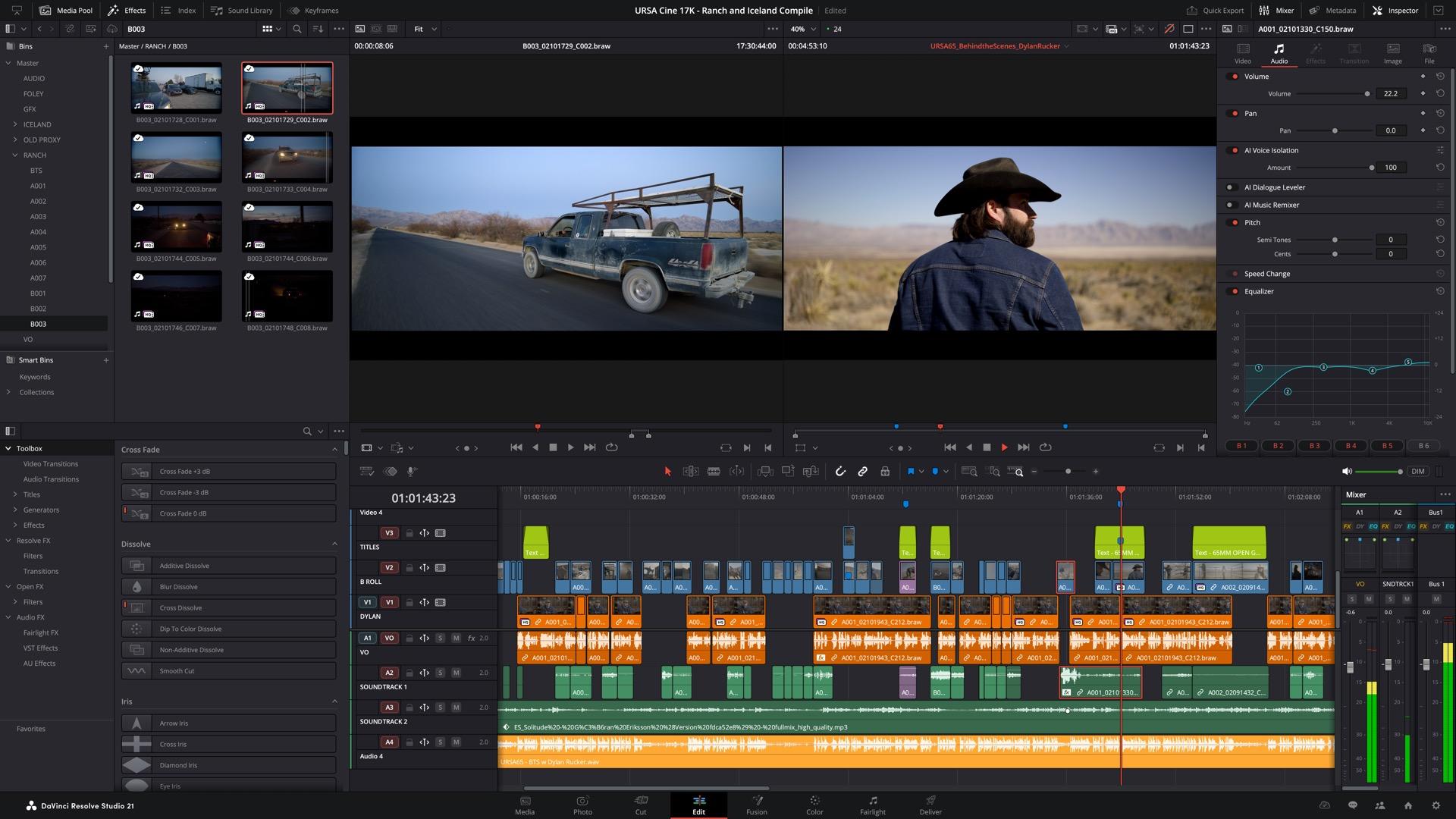
1. What Is DaVinci Resolve?
DaVinci Resolve is professional video-editing and post-production software created by Blackmagic Design.
It is used for a wide range of projects, including:
-
YouTube videos.
-
Social media content.
-
Short films and documentaries.
-
Commercial advertisements.
-
Music videos.
-
Corporate presentations.
-
Professional film and television production.
Unlike applications that focus mainly on editing, DaVinci Resolve brings several production tools together in one program.
You can import footage, arrange clips, edit video, adjust colors, create visual effects, improve audio, and export the finished project without constantly switching between different applications.
The software is available for Windows, macOS, and Linux, with a separate version for compatible iPad devices.
Official website: https://www.blackmagicdesign.com/products/davinciresolve
2. DaVinci Resolve 21: What's New in 2026?
Blackmagic Design introduced DaVinci Resolve 21 in June 2026, followed by several updates.
The 21.1 update introduced new AI assistant integration, expanded still-photography support, and more than 100 additional tools and controls for editing and color grading.
The latest listed update, DaVinci Resolve 21.1.2, includes improvements such as:
-
Improved timeline edit-point selection.
-
Up to 4x faster OGraf playback.
-
Additional template controls.
-
OGraf and Lottie graphics support on Linux.
-
Faster IntelliSearch analysis on supported Apple M6 computers running macOS 27.
-
Improved AI tool performance on certain Intel graphics platforms.
These improvements show that Blackmagic Design is continuing to develop Resolve beyond traditional video editing.
For users who already have the software installed, checking for updates is a good way to access new features and improvements.
Official update information: https://www.blackmagicdesign.com/support
3. The Main Features of DaVinci Resolve
One of the biggest reasons creators choose DaVinci Resolve is that it combines multiple professional tools into a single application.
Its main workspaces are designed for different stages of production.
The Cut Page: Fast Video Editing
The Cut page is designed for users who want to edit footage quickly.
It provides a streamlined editing environment with features such as:
-
Fast clip selection.
-
Source tape.
-
Dual timelines.
-
Automatic trimming tools.
-
Multicam editing features.
-
Quick timeline organization.
This workspace can be particularly useful for YouTubers, social media creators, and editors working with tight deadlines.
The Edit Page: Professional Timeline Editing
The Edit page provides a more traditional video-editing environment.
You can arrange clips on multiple tracks, add transitions, adjust timing, work with titles, and organize complex projects.
It supports workflows for:
-
YouTube productions.
-
Interviews.
-
Short films.
-
Documentaries.
-
Commercial projects.
-
Long-form video content.
For beginners, the Edit page is a useful place to learn the fundamentals of video editing.
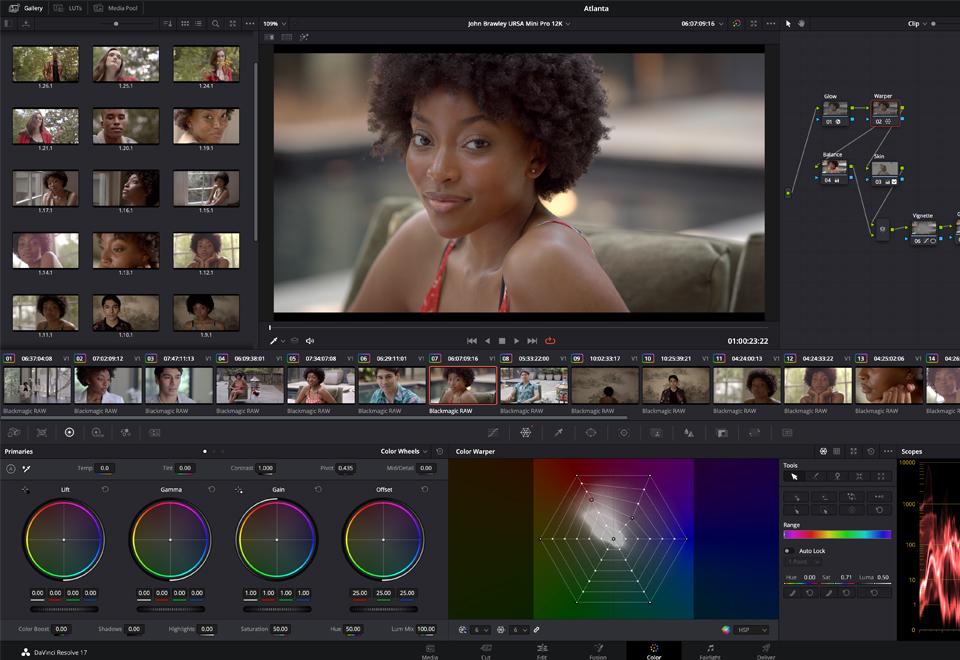
The Color Page: Professional Color Grading
Color grading is one of DaVinci Resolve's best-known strengths.
The Color page provides tools for adjusting the appearance of footage and creating a consistent visual style.
You can control:
-
Exposure and contrast.
-
White balance.
-
Saturation.
-
Shadows and highlights.
-
Skin tones.
-
Color curves.
-
Secondary color corrections.
-
HDR grading on supported versions and workflows.
For example, you can make footage recorded on different cameras look more consistent or create a cinematic appearance using carefully controlled color adjustments.
This is one of the reasons Resolve is popular among professional colorists.
The Fusion Page: Visual Effects and Motion Graphics
Fusion is DaVinci Resolve's visual-effects and motion-graphics environment.
It uses a node-based workflow that allows users to combine different effects and elements.
You can use it for:
-
Animated titles.
-
Motion graphics.
-
Green-screen effects.
-
Object removal.
-
Visual compositing.
-
2D and 3D animations.
-
Camera tracking.
-
Particle effects.
Fusion may take time to learn, particularly if you have never worked with node-based visual effects before.
However, it provides powerful creative possibilities without requiring a separate compositing application.
The Fairlight Page: Professional Audio Editing
Good video is not only about visuals. Audio quality is equally important.
Fairlight is DaVinci Resolve's dedicated audio-production environment.
It includes tools for:
-
Editing dialogue.
-
Adjusting audio levels.
-
Removing unwanted noise.
-
Mixing music and sound effects.
-
Applying audio effects.
-
Working with multiple audio tracks.
-
Producing surround and immersive audio.
For YouTube creators, this can help improve voice recordings, balance background music, and create a more professional listening experience.
4. AI Features in DaVinci Resolve
Artificial intelligence is becoming increasingly important in video-production software.
DaVinci Resolve includes AI-powered tools through its DaVinci Neural Engine, with the availability of individual features depending on the version and whether you use the free or Studio edition.
Some of its AI-related capabilities include:
IntelliSearch
IntelliSearch helps users find footage more efficiently by analyzing media and making it easier to search through content.
This can be useful when working with large video libraries containing many clips.
Magic Mask
Magic Mask helps isolate people or objects in footage.
Instead of manually creating every selection frame by frame, users can identify an object and use the tracking tools to follow it through a shot.
This can be useful for selective color correction, visual effects, and other editing tasks.
Smart Reframe
Smart Reframe helps adapt footage to different aspect ratios.
For example, a creator working with landscape footage may want to produce a vertical version for short-form social media platforms.
The tool can help keep the main subject within the new frame.
Voice Isolation
Voice Isolation is an AI-powered audio feature designed to help separate spoken voices from unwanted background noise.
It can be useful for interviews, recordings, and content created in environments with distracting sounds.
Speed Warp
Speed Warp is designed to improve the appearance of slow-motion footage by generating additional frames.
This can help create smoother-looking slow-motion effects, although the result depends on the original footage and processing conditions.
AI features are not a replacement for good recording techniques. Clean footage, proper lighting, and clear audio still matter.
5. DaVinci Resolve Free vs Studio: What's the Difference?
One of the most attractive things about DaVinci Resolve is its free edition.
Unlike many professional creative applications, users can access a substantial set of editing and post-production tools without paying a subscription fee.
However, Blackmagic Design also offers DaVinci Resolve Studio, which includes additional features.
Here is a general comparison:
| Feature | Free Version | Studio Version |
|---|---|---|
| Video editing | Yes | Yes |
| Color correction | Yes | Yes |
| Fusion visual effects | Yes, with some limitations | More advanced capabilities |
| Fairlight audio | Yes | Yes, with additional features |
| Maximum standard resolution | Up to Ultra HD 3840 × 2160 | Beyond 4K supported |
| Frame-rate support | Up to 60fps for supported standard formats | Up to 120fps for supported formats |
| AI Neural Engine features | Limited | Additional AI tools |
| Noise reduction | Limited | Advanced temporal and AI spatial noise reduction |
| Magic Mask | Not included | Included |
| Additional Resolve FX | Limited | Additional effects |
| HDR grading | Yes | Advanced HDR tools |
The free version supports virtually all 8-bit video formats at up to 60fps and Ultra HD resolution, according to Blackmagic Design.
Studio adds support for 10-bit video formats at up to 120fps and resolutions beyond 4K, along with additional effects and AI features.
Which version should beginners choose?
For most beginners, the free version is an excellent starting point.
You can learn the editing interface, create YouTube videos, practice color grading, and complete many personal projects without purchasing the Studio edition.
Consider Studio when you specifically need its advanced features, such as additional AI tools, advanced noise reduction, or higher-end professional format support.
Official comparison: https://www.blackmagicdesign.com/products/davinciresolve
6. How Much Does DaVinci Resolve Studio Cost?
DaVinci Resolve has two main editions:
-
DaVinci Resolve: Free.
-
DaVinci Resolve Studio: A paid version with additional professional capabilities.
Blackmagic Design's official product page lists DaVinci Resolve Studio at a promotional US price of $236, reduced from a listed regular price of $295 at the time of checking.
Prices and promotions can change, and local taxes or regional reseller prices may differ.
Unlike many subscription-based editing applications, Studio is offered as a one-time purchase rather than a recurring monthly subscription.
Before buying, check the official store for the current price and licensing conditions in your region.
Official pricing: https://www.blackmagicdesign.com/products/davinciresolve
7. System Requirements: Can Your Computer Run DaVinci Resolve?
DaVinci Resolve is a powerful application, and its performance depends heavily on your computer hardware.
Although basic editing may work on a modest computer, complex projects, high-resolution footage, visual effects, and AI tools can require considerably more processing power.
Here are some important hardware considerations.
Processor
A modern multi-core CPU can improve editing responsiveness and video processing.
RAM
Memory is particularly important when working with multiple applications, large projects, and high-resolution footage.
For a comfortable editing experience, 16GB of RAM is a sensible starting target for many ordinary projects, while 32GB or more can be beneficial for demanding work.
These are practical recommendations, not universal minimum requirements.
Graphics card
The GPU plays an important role in DaVinci Resolve.
A capable graphics card can improve playback, effects processing, color grading, and rendering.
The amount of GPU memory you need depends on the resolution, effects, and complexity of your projects.
Storage
Video files can occupy a large amount of storage space.
An SSD is recommended for the operating system, application, and active editing projects. Additional storage may be necessary for original footage, proxies, backups, and finished videos.
Operating systems
DaVinci Resolve supports:
-
Windows.
-
macOS.
-
Linux.
-
Compatible iPad devices.
The exact operating-system and hardware requirements vary by version. Check Blackmagic Design's current download and support documentation before installing.
8. How to Download and Install DaVinci Resolve
If you want to start editing videos, you can download the free version directly from Blackmagic Design.
Follow these steps:
Step 1: Visit the official website.
Open:
https://www.blackmagicdesign.com/products/davinciresolve
Step 2: Choose your version.
Select the free DaVinci Resolve download rather than the paid Studio edition if you are just starting.
Step 3: Select your operating system.
Choose Windows, macOS, or Linux, depending on your computer.
Step 4: Complete the download process.
Blackmagic Design may request basic registration details before providing the download.
Step 5: Install the application.
Open the downloaded installer and follow the instructions.
Step 6: Launch DaVinci Resolve.
After installation, open the application and create a new project.
Step 7: Import your video files.
You can begin by importing a few short clips and arranging them on the timeline.
Always download the software from the official Blackmagic Design website to avoid unofficial or modified installers.
9. DaVinci Resolve vs Adobe Premiere Pro
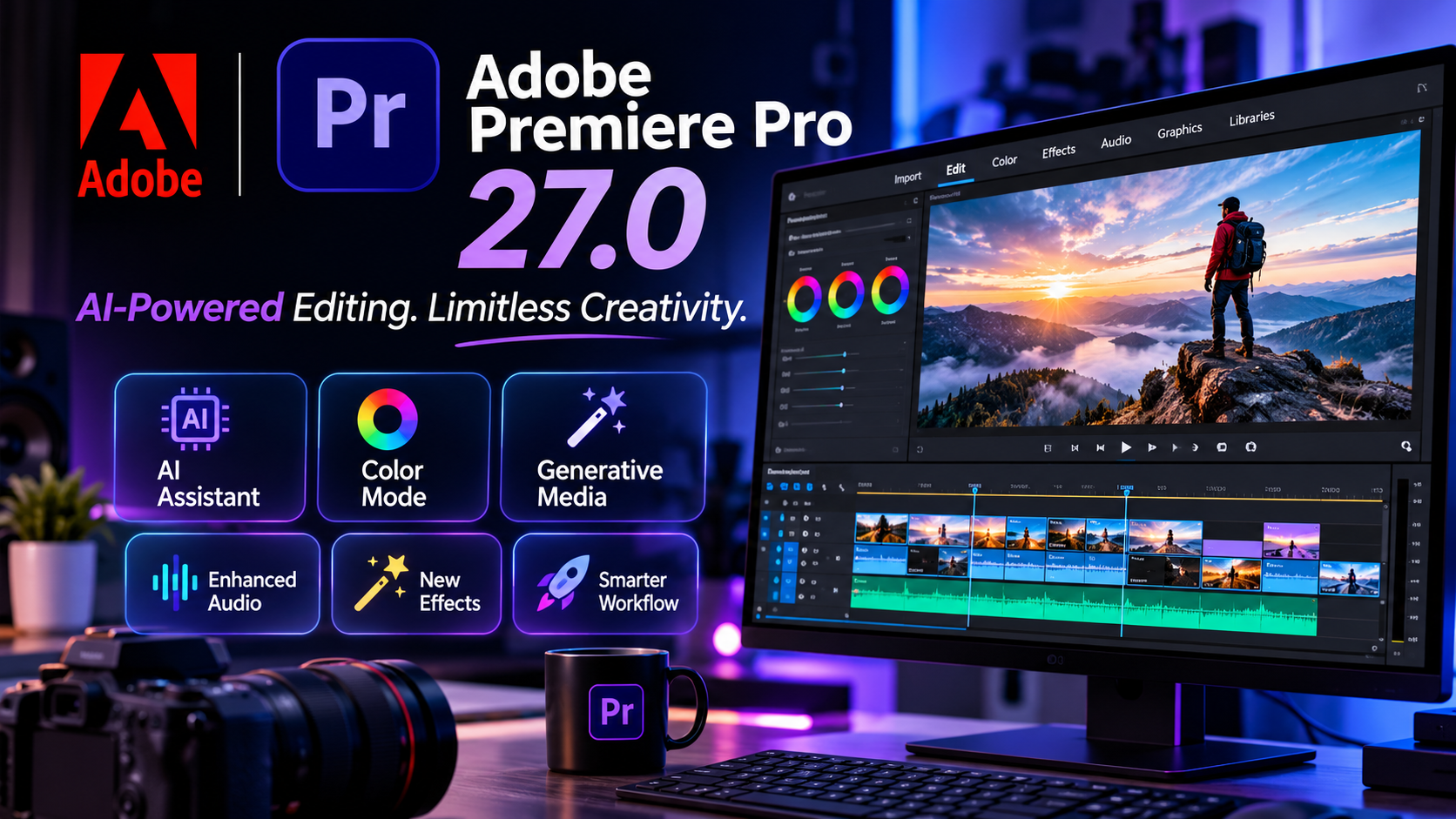
DaVinci Resolve is often compared with Adobe Premiere Pro because both applications are used for professional video editing.
However, they have different pricing structures and workflows.
| Feature | DaVinci Resolve | Adobe Premiere Pro |
|---|---|---|
| Free version | Yes | No permanent full-featured free version |
| Pricing model | Free edition and paid Studio license | Subscription |
| Video editing | Professional | Professional |
| Color grading | Extensive dedicated Color page | Professional color tools |
| Visual effects | Integrated Fusion | Often combined with Adobe After Effects |
| Audio production | Integrated Fairlight | Integrated audio-editing features |
| Best-known strength | Color grading and all-in-one post-production | Editing workflow and Adobe ecosystem |
Which one should you choose?
Choose DaVinci Resolve if you want a powerful free editing application, advanced color-grading tools, and integrated audio and visual-effects workflows.
Choose Premiere Pro if you already work with Adobe applications, depend on specific Adobe integrations, or prefer its editing workflow.
Neither application is automatically better for every project. The right choice depends on your experience, budget, hardware, and preferred workflow.
10. Is DaVinci Resolve Good for YouTube Creators?
Yes. DaVinci Resolve can be an excellent choice for YouTube creators.
It provides tools for almost every stage of video production.
You can use it to:
-
Edit talking-head videos.
-
Create tutorials.
-
Add subtitles and titles.
-
Improve audio quality.
-
Adjust colors.
-
Add transitions.
-
Create animated graphics.
-
Export videos for YouTube.
The free version is especially attractive for creators who are just starting and do not want to pay for editing software immediately.
However, beginners should expect a learning period. The application has many tools, and its interface may initially feel complicated.
A good approach is to start with simple editing and gradually learn color correction, audio mixing, and visual effects.
11. Advantages and Disadvantages of DaVinci Resolve
Advantages
-
A powerful free version.
-
Professional editing capabilities.
-
Excellent color-grading tools.
-
Integrated visual effects and audio production.
-
AI-powered tools in supported editions.
-
Available on multiple desktop operating systems.
-
Studio uses a one-time purchase rather than a monthly subscription.
Disadvantages
-
The interface can be challenging for beginners.
-
Advanced features may require powerful hardware.
-
Some AI tools are limited to the Studio version.
-
Complex projects can require substantial RAM and GPU resources.
-
Learning Fusion and advanced color grading takes time.
Frequently Asked Questions
Is DaVinci Resolve completely free?
DaVinci Resolve has a free edition with many professional editing, color, audio, and visual-effects tools. The Studio edition is paid and adds more advanced capabilities.
Is DaVinci Resolve good for beginners?
Yes. Beginners can use the free version to learn video editing. However, the application has many advanced features, so it is best to start with basic timeline editing before exploring the other workspaces.
Is DaVinci Resolve better than Premiere Pro?
It depends on your needs. Resolve is particularly attractive because of its free edition and dedicated color-grading environment. Premiere Pro may be more suitable for users who depend on Adobe's software ecosystem.
Can DaVinci Resolve run on a laptop?
Yes. It runs on supported Windows and macOS laptops, but performance depends on the processor, graphics hardware, RAM, storage, and video-project complexity.
Does DaVinci Resolve have AI features?
Yes. Supported AI features include tools such as Magic Mask, Smart Reframe, Voice Isolation, Speed Warp, and other capabilities powered by the DaVinci Neural Engine. Feature availability depends on the edition and supported hardware.
Is DaVinci Resolve available for Linux?
Yes. Blackmagic Design provides a Linux version of DaVinci Resolve.
Can I use DaVinci Resolve without an internet connection?
Many editing functions can be used offline after installation. However, downloading updates, accessing online services, and using certain connected features require an internet connection.
Is DaVinci Resolve Studio a subscription?
DaVinci Resolve Studio is offered as a paid license rather than a standard monthly subscription. Check Blackmagic Design's official licensing terms for current purchase and upgrade conditions.
Conclusion
DaVinci Resolve is one of the most interesting video-editing applications available in 2026.
It combines professional editing, color correction, visual effects, motion graphics, and audio production into a single application. Its free edition makes it accessible to beginners, while the Studio edition provides additional tools for demanding professional workflows.
The introduction of DaVinci Resolve 21 and its subsequent updates also shows how Blackmagic Design is expanding the software with new AI capabilities and creative tools.
If you are a beginner, the free version is a sensible place to start. If you are a professional editor or creator who needs advanced effects, additional AI features, and more demanding format support, Studio may be worth considering.
The bottom line: You do not need expensive editing software to start creating professional-looking videos. DaVinci Resolve gives you a powerful set of tools to learn, experiment, and build your video-editing skills.
Recommended Sources
-
Blackmagic Design — Official DaVinci Resolve product page: https://www.blackmagicdesign.com/products/davinciresolve
-
Blackmagic Design — Download DaVinci Resolve 21: https://www.blackmagicdesign.com/event/davinciresolvedownload
-
Blackmagic Design — Official support and latest updates: https://www.blackmagicdesign.com/support
-
Blackmagic Design — DaVinci Resolve training: https://www.blackmagicdesign.com/products/davinciresolve/training
-
Blackmagic Design — DaVinci Resolve official documentation: https://www.blackmagicdesign.com/support/family/davinci-resolve-and-fusion

The conversation (0)
Different perspectives make better conversations. Keep it thoughtful.
Be the first to share a perspective.