
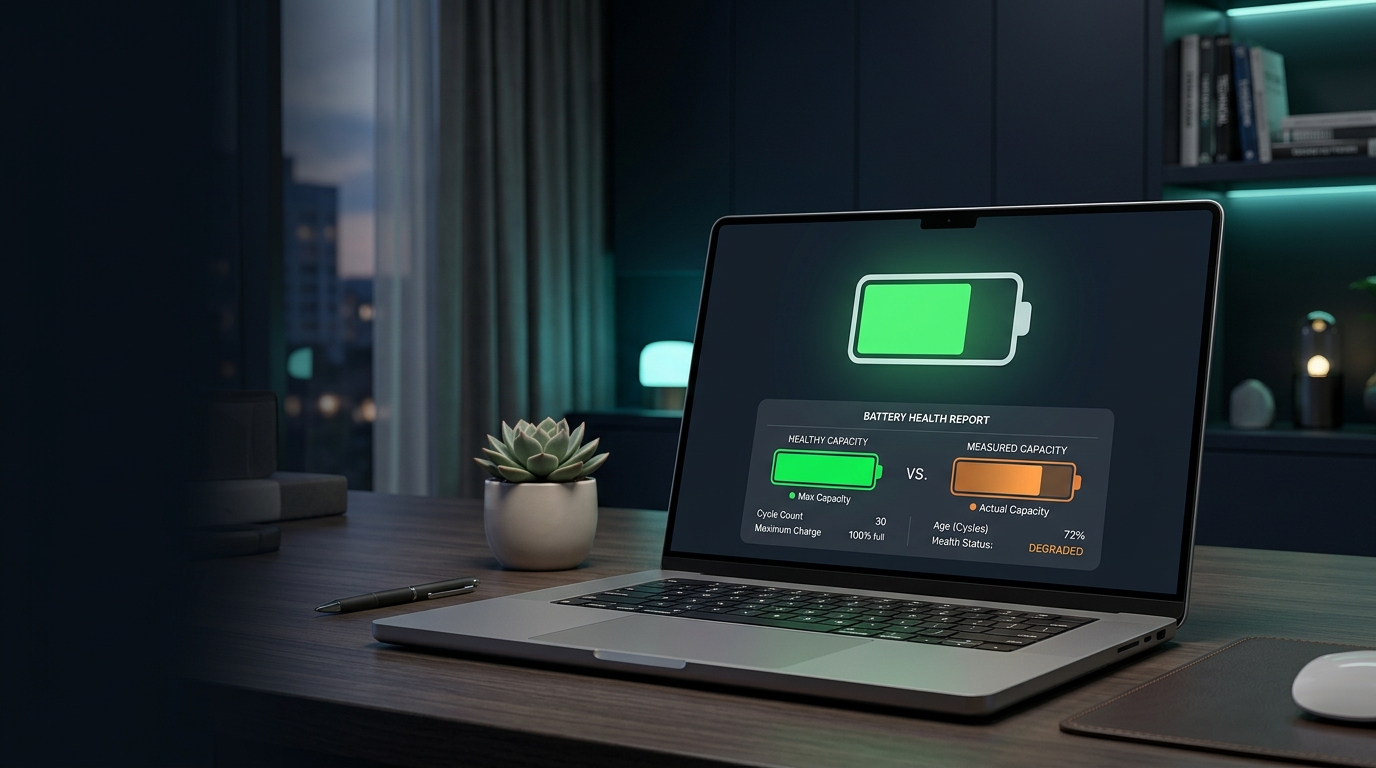
How to Check Laptop Battery Health in Windows 11 Without Extra Software
Laptop batteries gradually lose capacity as they age and go through charging cycles. A laptop that once lasted eight hours might eventually need charging after only three or four hours, even when you use it in much the same way.
But how can you tell whether the battery is wearing out, or whether an application, screen brightness, or background process is consuming too much power?
If you use Windows 11, you do not need to install a third-party application to get started. Windows includes a built-in battery reporting tool that can show the battery's reported capacity, usage history, and other useful information.
In this guide, you will learn how to generate a battery report, understand its most important numbers, estimate your battery's remaining capacity, and decide what to do if its performance has deteriorated.
Why Should You Check Your Laptop Battery Health?
A laptop battery does not usually retain its original capacity forever. As a lithium-ion battery ages, it gradually becomes less capable of storing energy.
Checking its health can help you understand whether reduced battery life is consistent with normal wear or whether you should investigate other problems.
A battery report can help you:
-
Compare the battery's original capacity with its current reported capacity.
-
Review charging and usage history.
-
Check whether the battery has a reported cycle count.
-
Identify signs of capacity loss.
-
Decide whether to adjust your power settings or seek a replacement.
However, battery health is only one part of the picture. A healthy battery can still drain quickly if your laptop runs demanding applications, keeps its screen very bright, or performs heavy background tasks.
The goal is to look at both battery capacity and real-world usage.
Method 1: Generate a Battery Report Using Command Prompt
The easiest way to start is with Windows' built-in powercfg command. It generates an HTML report that you can open in your web browser.
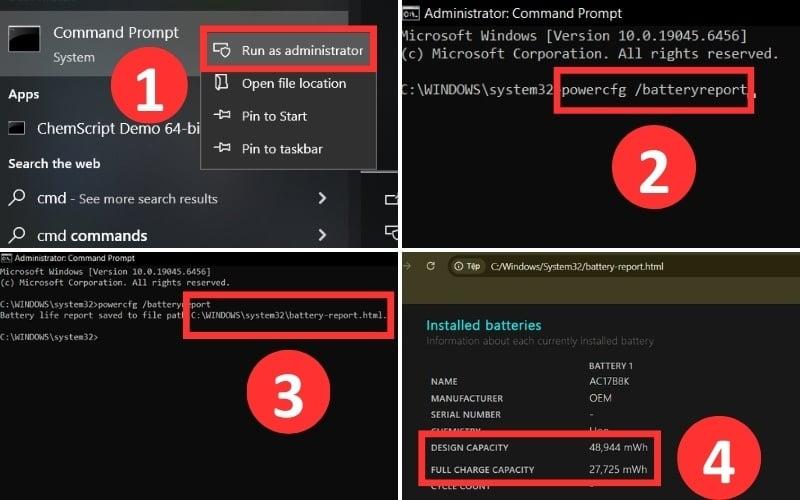
Step 1: Open Windows Terminal or Command Prompt
Click Start and search for Terminal or Command Prompt.
Open the application. Administrator access is not normally required for the standard battery report command, although some managed computers may have restrictions.
Step 2: Run the battery report command
Type the following command and press Enter:
powercfg /batteryreportWindows should generate a battery report and display its saved location.
The file is an HTML document, so you do not need a special application to read it.
Step 3: Find the report
Read the path shown in the terminal after the command completes.
Depending on your Windows environment, the report may be saved in your current directory or another specified location.
If you prefer to choose the location yourself, run:
powercfg /batteryreport /output "%USERPROFILE%\battery-report.html"The report should then be saved in your Windows user folder under the name battery-report.html.
Step 4: Open the report
Open File Explorer, navigate to the saved file, and double-click it. Your default web browser should display the report.
Look for the section titled Installed batteries. This is where you can usually find the most useful capacity information.
Microsoft also documents this feature in its guide to caring for your battery in Windows.
Method 2: Understand the Most Important Battery Report Numbers
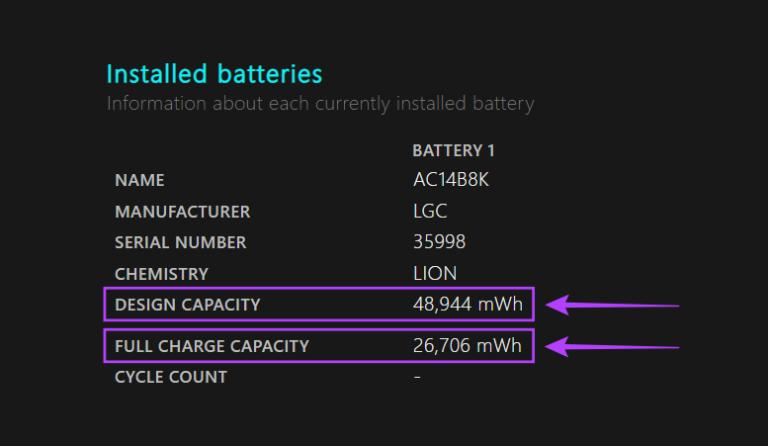
Once you open the report, you may see several technical terms. Two of the most useful are Design Capacity and Full Charge Capacity.
Design Capacity
Design Capacity is the battery's reported capacity when it was designed or originally specified.
It gives you a reference point for understanding how much energy the battery was intended to hold.
Full Charge Capacity
Full Charge Capacity is the battery's currently reported maximum charge capacity.
As a battery ages, this value often decreases. Comparing it with the design capacity gives you a useful estimate of the remaining capacity relative to the original specification.
Cycle Count
Some batteries report a Cycle Count, which indicates how many equivalent charging cycles the battery has completed.
A full cycle generally represents cumulative battery use equivalent to 100% of capacity. For example, using 50% of the battery on one occasion and another 50% later is approximately one equivalent full cycle.
Not every laptop reports this value, so a blank or unavailable cycle count does not automatically mean the battery is defective.
How to Calculate Your Laptop Battery Health Percentage
You can estimate the battery's remaining capacity by comparing its Full Charge Capacity with its Design Capacity.
Use this formula:
Estimated capacity remaining = (Full Charge Capacity ÷ Design Capacity) × 100
For example, imagine a laptop battery with these reported values:
| Battery measurement | Example value |
|---|---|
| Design Capacity | 50,000 mWh |
| Full Charge Capacity | 40,000 mWh |
| Estimated capacity remaining | 80% |
The calculation is:
40,000 ÷ 50,000 × 100 = 80%
In this example, the battery reports approximately 80% of its original design capacity.
This is a useful estimate, but it is not necessarily the manufacturer's official battery-health rating. Reported capacity can vary with battery calibration, temperature, firmware, and the device's measurement system.
What does the percentage mean?
The following ranges can help you interpret the result as a rough guide, not as an official diagnosis.
| Estimated remaining capacity | General interpretation |
|---|---|
| 90–100% | Close to the original reported capacity |
| 80–89% | Some capacity loss; compare with your normal battery life |
| 70–79% | Noticeable capacity loss may be present |
| Below 70% | Significant capacity loss may warrant further evaluation |
These are practical reference ranges, not universal replacement thresholds. Follow the laptop manufacturer's recommendations and consider your actual battery runtime, warranty, and diagnostic results.
A battery reporting 80% capacity does not necessarily need replacing. If it lasts long enough for your daily work and behaves normally, you may be able to continue using it.
What If Your Laptop Battery Health Looks Good but Drains Quickly?
A battery can report reasonable capacity and still drain faster than expected.
In this situation, investigate how your laptop uses power before buying a replacement.
Check battery usage by application
Windows 11 provides battery-usage information in Settings.
-
Open Settings.
-
Select System.
-
Open Power & battery.
-
Find the battery usage section.
-
Review which applications have consumed the most power during the available reporting period.
The exact information displayed may vary by device and Windows version.
If an application consumes an unusually large amount of energy, check whether it is performing a demanding task, running in the background, or behaving unexpectedly.
Reduce unnecessary power consumption
Try these adjustments:
-
Lower the screen brightness when practical.
-
Enable Energy saver or Battery saver when you need longer runtime.
-
Close applications you are not using.
-
Reduce unnecessary background activity.
-
Disconnect peripherals that consume power when you do not need them.
-
Install appropriate Windows, driver, and firmware updates from trusted sources.
Microsoft provides more guidance in its official article on caring for your battery in Windows.

Can You Trust the Battery Health Information?
The Windows battery report is useful, but its numbers should not be treated as a perfect measurement of the battery's physical condition.
The report depends on information supplied by the battery, its firmware, and the system's hardware and drivers. Some laptops expose more detailed information than others.
For example, a laptop may report a Full Charge Capacity that changes after calibration or firmware updates. The number may also differ from a rating shown in a manufacturer's diagnostic utility.
If the result seems inconsistent with the laptop's actual performance, consider these additional checks:
-
Run the laptop manufacturer's official hardware diagnostics.
-
Check whether a BIOS or firmware update is recommended for your model.
-
Compare reported capacity with the laptop's real-world runtime.
-
Check whether the battery is covered by a warranty.
-
Ask an authorized service provider to evaluate the battery if necessary.
If you are buying a used laptop, a battery report is one useful check, but it does not prove that the device or its battery is in good overall condition.
When Should You Replace a Laptop Battery?
There is no single battery-health percentage that applies to every laptop.
Consider professional evaluation or replacement when you notice several of the following:
-
Battery runtime has become too short for your needs.
-
The laptop shuts down unexpectedly while reporting remaining charge.
-
The manufacturer's diagnostics report a battery problem.
-
The battery is no longer charging normally.
-
The device displays a battery-service warning.
Important safety warning: If your laptop battery is swollen, stop using the device and disconnect power if you can do so safely. Do not press, puncture, or attempt to remove a swollen battery unless you are qualified to do so. Arrange professional service.
A swollen lithium-ion battery can present a fire and injury risk, so do not continue using the laptop simply because it still turns on.
How to Help Your Laptop Battery Last Longer
You cannot prevent a rechargeable battery from aging, but good habits can help reduce unnecessary wear.
Avoid excessive heat
Heat can accelerate battery aging. Use the laptop on a hard, well-ventilated surface, keep its air vents clear, and avoid leaving it in a hot car or direct sunlight.
Avoid frequent deep discharges
You do not need to drain a lithium-ion battery to zero before charging it. Microsoft recommends keeping the battery within a moderate charge range, roughly 20–80% when practical, to help slow degradation.
This is a general recommendation rather than a strict rule for every laptop. If your device has a manufacturer's Smart Charging feature or a charge limit, consider using it when you often keep the laptop plugged in.
Use the manufacturer's charging features
Some laptops offer battery conservation modes that limit the maximum charge while the computer remains connected to power.
Check your manufacturer's official software or documentation to see whether your model supports this feature.
Store the laptop properly
If you plan to leave a laptop unused for an extended period, store it in a cool, dry location and avoid leaving the battery fully charged or completely drained. Microsoft recommends a charge level of around 40–60% for long-term storage.
Frequently Asked Questions
How do I check my laptop battery health in Windows 11?
Open Terminal or Command Prompt and run powercfg /batteryreport. Open the generated HTML file and look for Design Capacity and Full Charge Capacity in the Installed batteries section.
Does Windows 11 have a built-in battery health report?
Yes. Windows includes the powercfg /batteryreport command, which generates a report containing battery usage and capacity information when supported by the device.
What is a good battery health percentage for a laptop?
A higher remaining-capacity estimate generally means the battery retains more of its original reported capacity. However, there is no universal replacement threshold. Consider the laptop's actual runtime, manufacturer's diagnostics, and your needs.
Can I check battery health without installing software?
Yes. The built-in Windows battery report is a good first step and does not require a third-party battery monitoring application.
Why is Full Charge Capacity lower than Design Capacity?
Rechargeable batteries gradually lose capacity through aging and use. The difference is normal to some extent, although the amount varies with the battery, temperature, usage, and charging habits.
What if my battery report does not show Cycle Count?
Some devices do not expose cycle-count information to Windows. You can still compare Design Capacity and Full Charge Capacity, check the manufacturer's diagnostic tools, and evaluate actual runtime.
Conclusion
Checking your laptop battery health does not need to be complicated.
Windows 11 includes a built-in battery reporting tool that can show the battery's Design Capacity, Full Charge Capacity, usage history, and other available information. By comparing the capacity values, you can estimate how much of the original reported capacity remains.
If your laptop drains quickly, also investigate battery usage, background applications, screen brightness, and heat before deciding to replace the battery.
The most useful first step is to generate the report, understand the numbers, and compare them with your laptop's real-world battery life.
For official instructions, see Microsoft's battery care guide for Windows.
This article is for informational purposes. Battery measurements and replacement recommendations vary by laptop model. Consult the manufacturer's documentation or a qualified service provider if you suspect a battery fault.


The conversation (0)
Different perspectives make better conversations. Keep it thoughtful.
Be the first to share a perspective.