

How to Run AI Locally on Your PC: A Beginner’s Guide to Ollama and LM Studio
AI tools have become useful for writing, coding, research, and everyday problem-solving. However, many popular AI assistants run on remote servers, which means your prompts and data may need to be sent to an online service.
There is another option: running an AI model locally on your own computer.
Local AI allows you to download a compatible model and run it using your computer's processor, memory, and, when available, graphics card. Once the model is downloaded, many tasks can be performed without an internet connection.
You do not need to train an AI model yourself or build an expensive server. Tools such as Ollama and LM Studio make it possible to experiment with local AI using an ordinary computer, provided it has enough resources for the model you choose.
In this guide, you will learn what local AI is, what hardware you need, how to install it, and how to decide whether it is the right choice for you.

What Is Local AI?
Local AI refers to artificial intelligence models that run on your own device instead of relying entirely on a remote server.
For example, when you use a cloud-based chatbot, your prompt is generally sent to a provider's infrastructure, where the model generates a response. With a local model, the software running on your computer performs the inference using the model files stored on your device.
Local AI can be used for tasks such as:
-
Answering questions and explaining complex topics.
-
Drafting, rewriting, and summarizing text.
-
Generating and explaining code.
-
Brainstorming ideas and organizing notes.
-
Working with supported documents or images.
-
Experimenting with AI APIs and building applications.
The results depend on the model, your hardware, and the task. A small local model may be useful for everyday questions but perform less reliably than a larger cloud model on difficult reasoning, complex coding, or specialized research.
Does local AI work without the internet?
Yes, after you have installed the required software and downloaded a compatible model, you can generally run that model offline.
However, internet access is normally needed to download the application and model files, receive updates, and access online services.
Make sure you choose a model that runs locally. Some tools also offer cloud-hosted models, which do not provide the same offline behavior.
Why Run AI on Your Own Computer?
Before installing anything, it is worth understanding the main advantages and limitations.
1. More control over your data
Local processing can reduce the need to send prompts, documents, and code to an external AI provider.
This can be useful when working with private notes, personal documents, or development projects.
However, local AI does not automatically guarantee complete privacy. Some applications may have optional cloud features, telemetry, or integrations that communicate with external services. Review the application's settings and privacy documentation, and avoid sending sensitive information to services you have not evaluated.
2. No per-prompt cloud API bill
Once you have downloaded a model, local inference does not normally involve a separate fee for each prompt.
You still need to consider electricity, hardware, storage, and the time required to configure your system. The software and model may also have their own license conditions.
3. Work without a continuous internet connection
A compatible local model can continue answering questions even when your internet connection is unavailable.
This can be helpful when traveling, working in locations with unreliable connectivity, or experimenting with AI in an offline environment.
4. Build and test your own AI applications
Developers can use local models to experiment with AI-powered applications without immediately paying for a hosted model API.
Depending on the tool, you can connect an application to a local API and test features such as text generation, summarization, and coding assistance.
What are the disadvantages?
Local AI also has trade-offs:
-
Large models can require substantial RAM or graphics memory.
-
Responses may be slower on computers without suitable hardware acceleration.
-
Smaller models can make more mistakes than stronger cloud models.
-
Downloading models can consume several gigabytes of storage.
-
Some advanced capabilities may require additional setup.
Local AI is not automatically better than cloud AI. It is another option with different costs, privacy characteristics, and performance limits.
What Hardware Do You Need to Run Local AI?
You do not necessarily need a dedicated AI workstation. The best starting point depends on your computer's memory, processor, graphics hardware, and available storage.
As a general starting point, LM Studio recommends at least 16 GB of RAM for Windows computers and recommends a dedicated GPU with at least 4 GB of VRAM. Smaller models may run on less powerful systems, but performance and compatibility will vary.
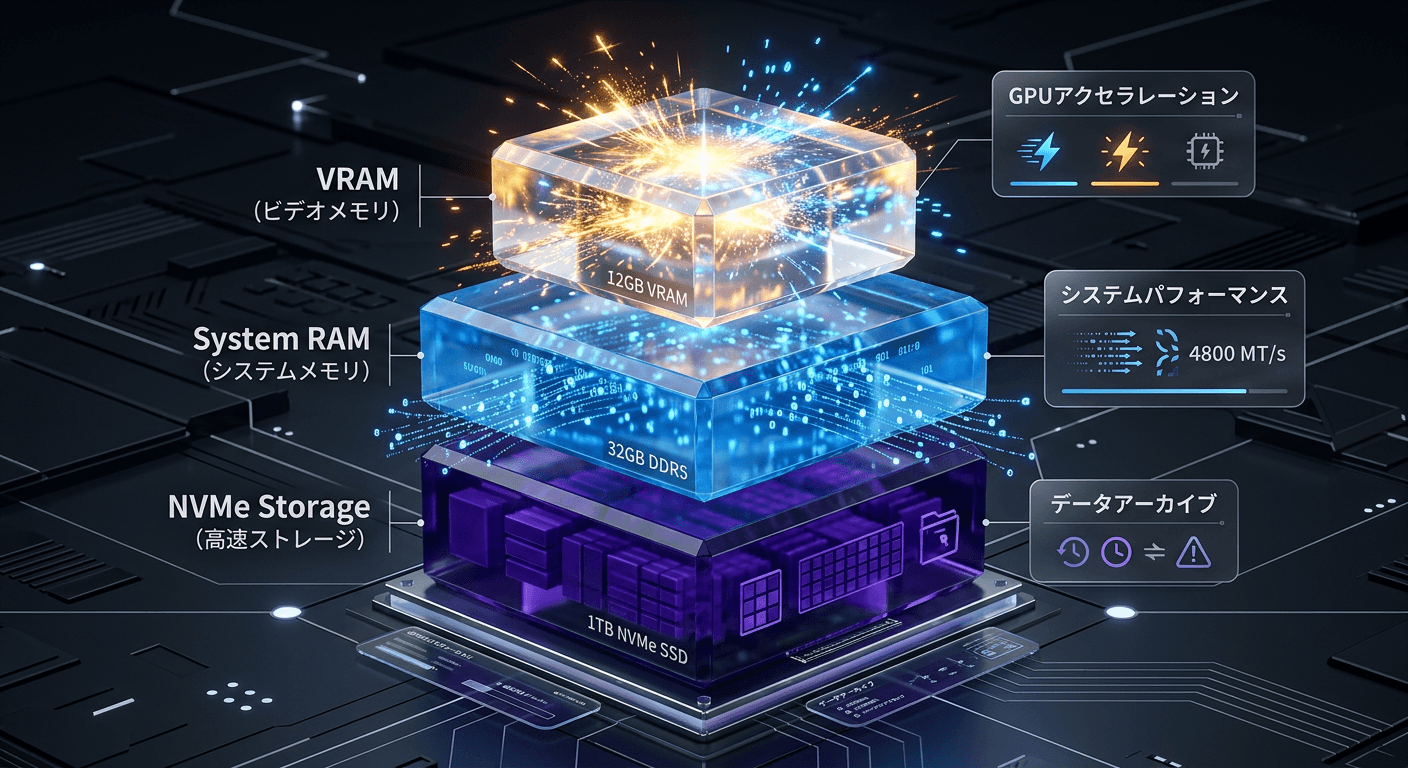
Here is a practical starting guide:
| Computer resources | What to expect |
|---|---|
| 8 GB RAM | Experiment with smaller, lightweight models; performance may be limited |
| 16 GB RAM | A reasonable starting point for many small local models |
| 32 GB RAM or more | More flexibility to try larger models, depending on the model and other hardware |
| Dedicated GPU | Can improve performance when the model and software support it |
| Sufficient SSD storage | Needed to store the application and downloaded model files |
These are general guidelines, not guaranteed compatibility requirements. A model's memory usage depends on its size, quantization, context length, and runtime configuration. The operating system and other open applications also consume memory.
What is a model's size?
AI models are often described by their parameter count, such as 2 billion, 4 billion, 8 billion, or more parameters.
In general, larger models need more resources, although architecture and quantization also matter. Quantization reduces the precision used to store model weights, often lowering memory requirements at some potential cost to output quality.
Do not assume that a model will fit in RAM just because its download size is smaller than your available memory. Leave room for the operating system and the additional memory required while the model runs.
If your computer has limited resources, begin with a smaller model and increase the size only when you know your hardware can handle it.
Ollama vs. LM Studio: Which Should You Choose?
Two popular ways to run local AI are Ollama and LM Studio. Both can run supported models locally, but they suit different workflows.
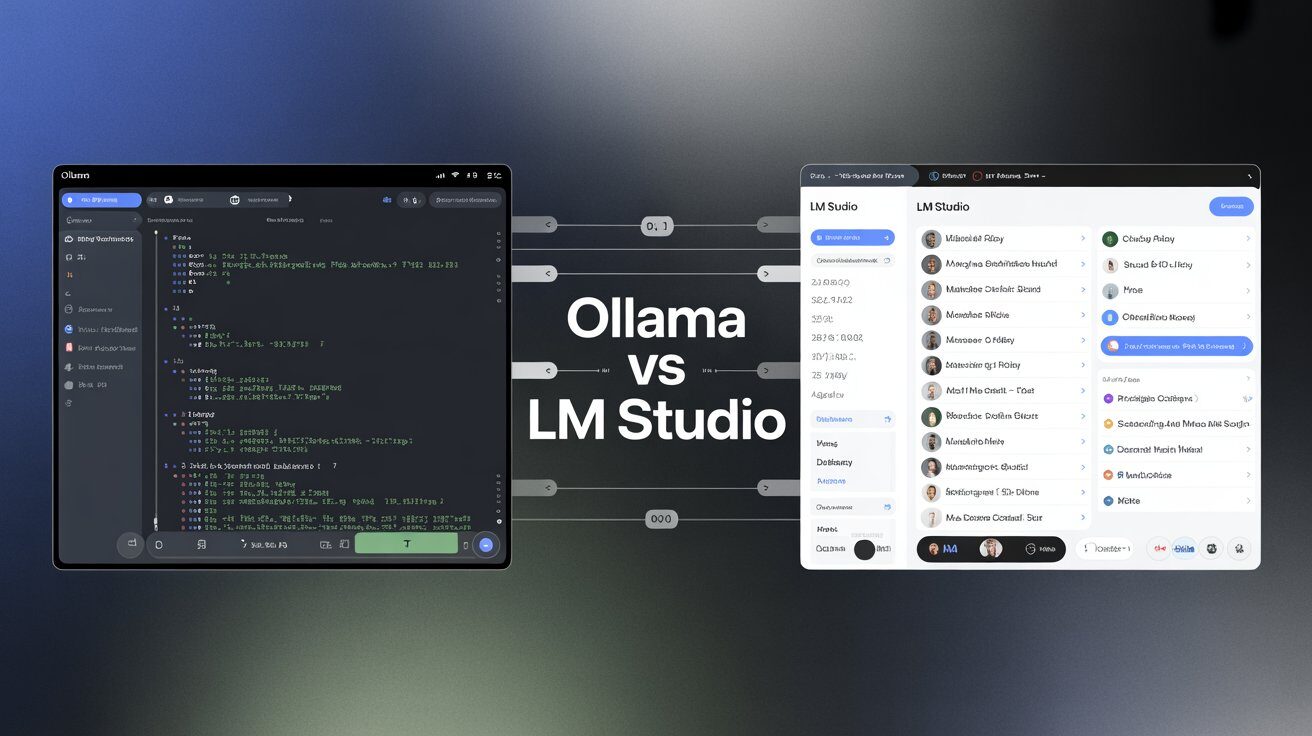
Ollama: Best for developers and terminal users
Ollama makes it straightforward to download and run models through a command-line interface. It is particularly useful if you want to integrate local AI into your development workflow.
After installing Ollama, you can download a model, start a conversation, and use supported local APIs to connect your own applications.
Official website: https://ollama.com/
LM Studio: Best for a graphical interface
LM Studio provides a desktop interface for discovering models, downloading them, loading them into memory, and chatting with them.
It is a good choice if you prefer working through menus and buttons rather than typing commands. It also provides developer features, including local APIs.
Official website: https://lmstudio.ai/
Which one should you pick?
Choose Ollama if you are comfortable with a terminal or want to connect a local model to your own software.
Choose LM Studio if you prefer a graphical interface and want to explore models without beginning with command-line tools.
You can also use both, but starting with one makes it easier to understand the basic workflow before adding another application.
How to Run Your First Local AI Model with Ollama
The following walkthrough uses Windows as an example. Ollama also supports macOS and Linux, although installation instructions differ by operating system.
Step 1: Download Ollama
Visit the official website:
Select the installer for your operating system and follow the installation instructions.
Download software only from the official source or another trusted distribution channel.
Step 2: Open a terminal
On Windows, open PowerShell or Windows Terminal.
Check that Ollama is installed and available by running:
ollama --versionIf the command is not recognized, finish the installation or reopen the terminal before continuing.
Step 3: Download and run a model
For a first experiment, you can try the smaller Gemma 4 E2B model available in the Ollama library.
Run:
ollama run gemma4:e2bOllama will download the model if it is not already available locally, then start an interactive conversation.
The model files require several gigabytes of storage, and the actual memory needed to run the model can be higher than the download size. Check the model's current listing and your computer's available resources before downloading.
Model page: https://ollama.com/library/gemma4
Step 4: Ask your first question
Once the model is ready, try a simple prompt:
Explain how an HTTP request works in simple terms.
Give me a practical example.
You can then ask follow-up questions, request a shorter explanation, or ask the model to provide an example.
For example:
Write a simple JavaScript function that checks
whether a number is even or odd.
Explain each line.
These are examples to try, not a guarantee that the model will always return correct code. Review generated answers before using them in a real project.
Step 5: End the session
When you finish, follow the terminal instructions to exit the conversation. You can run the same command again later to continue using the model.
If you want to use a different model, check the Ollama library for available models and their requirements.
How to Run Local AI with LM Studio
If you prefer a graphical interface, LM Studio offers an alternative workflow.
Step 1: Install LM Studio
Visit the official website:
Download the appropriate version for your computer and complete the installation.
Before proceeding, check the current system requirements. For Windows x64 systems, LM Studio requires a CPU with AVX2 support and recommends at least 16 GB of RAM.
Step 2: Find a model
Open LM Studio and go to its model-discovery area.
Search for a model that fits your computer's hardware. Start with a smaller model rather than downloading a large one immediately.
Review the model's size, compatibility, license, and any special requirements before downloading it.
Step 3: Download and load the model
Download the model and open the model-loading interface.
Loading a model means allocating the memory needed for the model to generate responses. Depending on its size and your hardware, this may take some time.
Step 4: Start chatting
Open the chat interface, select your loaded model, and enter a question.
Try the same prompts you used with Ollama. This makes it easier to compare the two tools and see how well the model performs on your computer.
For additional instructions, see the official guide:
https://lmstudio.ai/docs/app/basics
What Can You Actually Do with a Local AI Model?
After installation, start with a few practical tasks rather than expecting a small model to handle everything.
Writing and summarization
Ask the model to summarize your notes, rewrite a paragraph, or create a first draft of an email.
For example:
Summarize the following notes into five bullet points.
Keep the important details and do not add new facts.

[Paste your notes here]
Learning and research
You can ask the model to explain technical concepts, compare programming approaches, or create practice questions.
However, a local model may not have access to current internet information. It can also produce incorrect facts, so verify important claims against reliable sources.
Coding assistance
Developers can ask a local model to explain a function, suggest a refactor, or generate a basic test.
For example:
Review this function for readability and potential bugs.
Explain each suggested change before rewriting the code.

[Paste your code here]
Treat the result as a suggestion. Run tests, inspect the code, and never assume that generated code is secure simply because it looks convincing.
Experimenting with AI APIs
If you build applications, both Ollama and LM Studio offer ways to connect software to local models.
This lets you experiment with AI features such as summarization, text generation, and question-answering while keeping inference on your own machine, provided you use a local model and do not route requests through external services.
[IMAGE 4 — OPTIONAL PRACTICAL USE CASE IMAGE]
Suggested image: A developer's desktop with a code editor, a local AI chat window, and a simple diagram showing an application sending a prompt to a model running on the same computer.
Does Local AI Protect Your Privacy Completely?
No. Local AI can improve control over your data, but privacy depends on the complete setup.
When you run a model locally, the prompt can be processed on your computer without being sent to a remote model provider. This is useful for sensitive workflows, but you should confirm how the application is configured.
Before using local AI for confidential information:
-
Check whether the selected model runs locally or in the cloud.
-
Review the application's privacy and telemetry settings.
-
Disable optional online features if you do not need them.
-
Be careful when installing third-party extensions or connecting external services.
-
Protect your computer, stored files, and local API endpoints.
Also remember that local AI can produce incorrect answers. Do not rely on it alone for important legal, medical, financial, or security decisions.
Common Problems When Running Local AI
The model is too slow
Your computer may not have enough memory or suitable hardware acceleration for the selected model.
Try a smaller model, close other memory-intensive applications, or check whether the runtime is using supported hardware acceleration.
The computer runs out of memory
A model's download size is not the same as its total memory requirement. Model weights, context, and other runtime data all consume resources.
Try a smaller or more memory-efficient model and avoid setting unnecessarily large context lengths.
The model gives incorrect answers
Local models can hallucinate, misunderstand questions, or generate outdated information.
Use clear prompts, ask the model to explain its reasoning or assumptions, and independently verify important details. A longer answer is not necessarily a more accurate one.
The model cannot access current information
A local model does not automatically have live web access. Its built-in knowledge may be outdated, depending on the model and its training.
If you need current information, research it through reliable online sources and provide the relevant material to the model, or use a properly configured tool that supports web access.
Final Thoughts
Running AI locally is a practical way to learn about language models, experiment with coding assistants, and explore AI applications without relying on a cloud service for every prompt.
Ollama is a strong starting point for developers and people comfortable with the command line. LM Studio is a good alternative for users who prefer a graphical interface.
Start with a small model, check your computer's available resources, and test it on tasks you actually care about. You can move to larger models as you understand your hardware and performance needs.
Remember that local AI has trade-offs: it can offer more control and offline access, but it may be slower or less capable than a larger hosted model.
The best way to get started is simple: install one tool, download one suitable model, and try a few real tasks before deciding whether local AI fits your workflow.
Further Reading
This article is for educational purposes. Model availability, system requirements, and software features may change. Check official documentation before installing software or choosing a model.


The conversation (0)
Different perspectives make better conversations. Keep it thoughtful.
Be the first to share a perspective.