
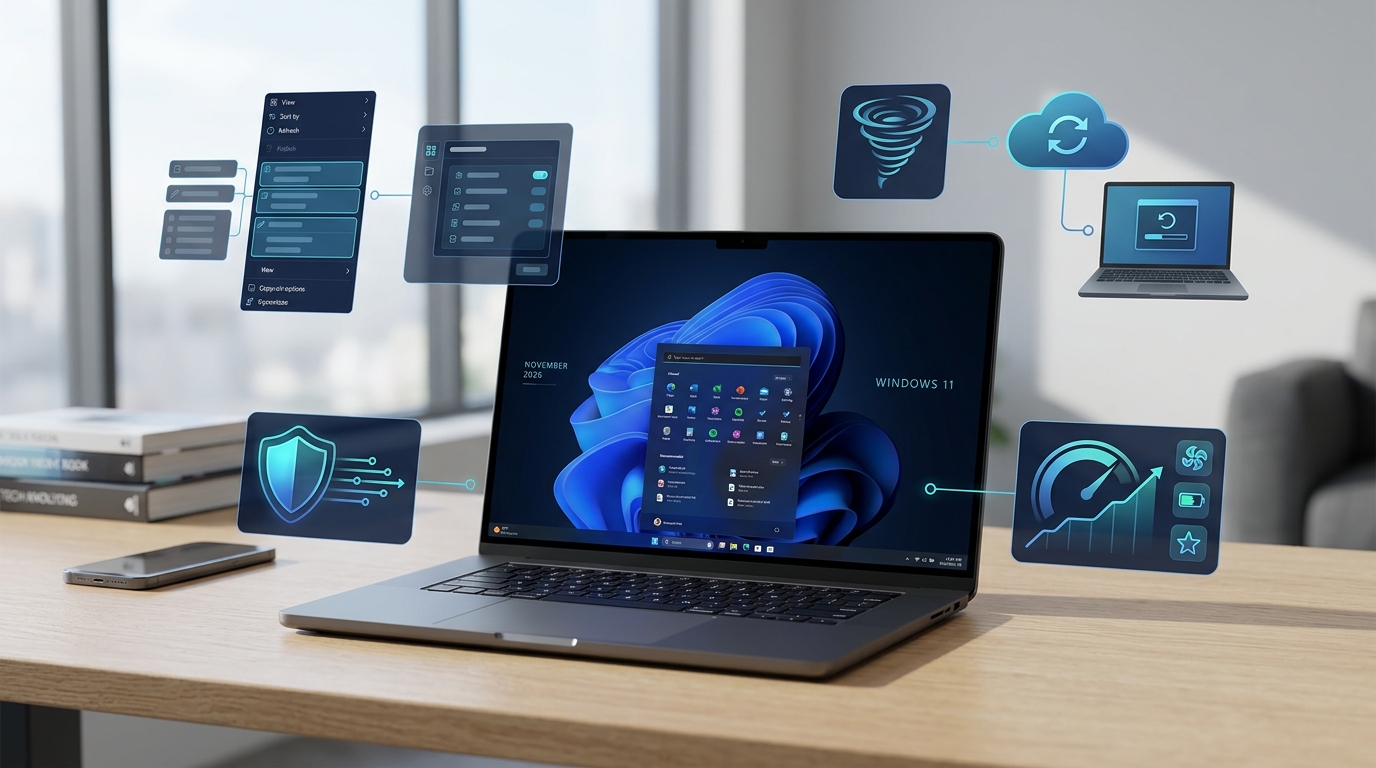
Microsoft is rolling out a new batch of Windows 11 improvements in November 2026, bringing changes to the right-click menu, Windows recovery, Microsoft Edge, accessibility, privacy, and system security.
Some of these updates address long-standing user complaints. Others make everyday tasks more convenient or improve how Windows handles performance, battery life, and recovery.
The biggest additions include a customizable right-click menu and Cloud Rebuild, a new recovery option that can reinstall Windows without requiring a bootable USB drive.
Here are 11 Windows 11 changes worth knowing about, what they do, and which ones are actually useful.
1. Windows 11 Finally Gets a Customizable Right-Click Menu
The Windows 11 context menu has been a source of frustration for some users since the operating system launched. Its simplified design moved several commands into additional menus, making familiar tasks less convenient.
The November update introduces a more customizable experience.
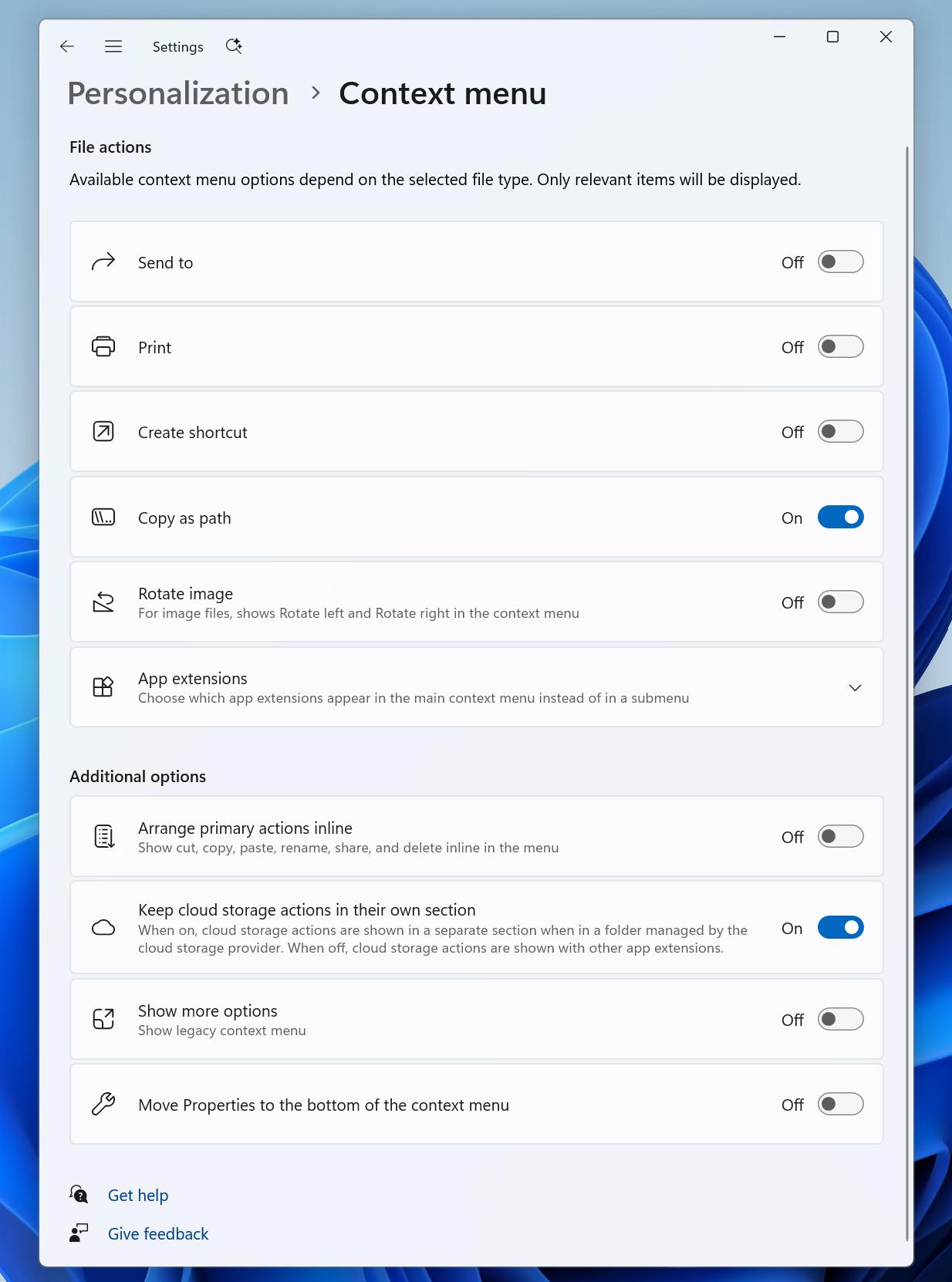
Users can now choose which commands appear in the main context menu, enable or disable built-in options, and control how third-party application extensions are displayed.
You can also add commands such as Print, display Cut, Copy, Paste, Rename, Delete, and Share directly in the menu, and move Properties to the bottom.
To access the new options, right-click a file or folder and select Customize menu. You can also find the settings under Settings > Personalization > Context menu.
Why it matters: This is one of the most useful changes in the update. Instead of forcing everyone to use the same layout, Windows gives users more control over a menu they interact with every day.
2. Xbox Mode Gets Easier to Navigate
Microsoft is improving the gaming experience in Windows 11, particularly for people using controllers and handheld gaming devices.
The updated Gaming Task View introduces a navigation bar that makes it easier to access important system options, including Exit to Desktop and Power Options.
The change is relatively small, but it makes navigating Windows while using a controller more convenient.
Why it matters: This improvement mainly benefits PC gamers and handheld gaming users. Regular desktop users are unlikely to notice much difference.
3. Privacy Settings Become Easier to Understand
Windows 11 is also improving the way privacy controls are organized.
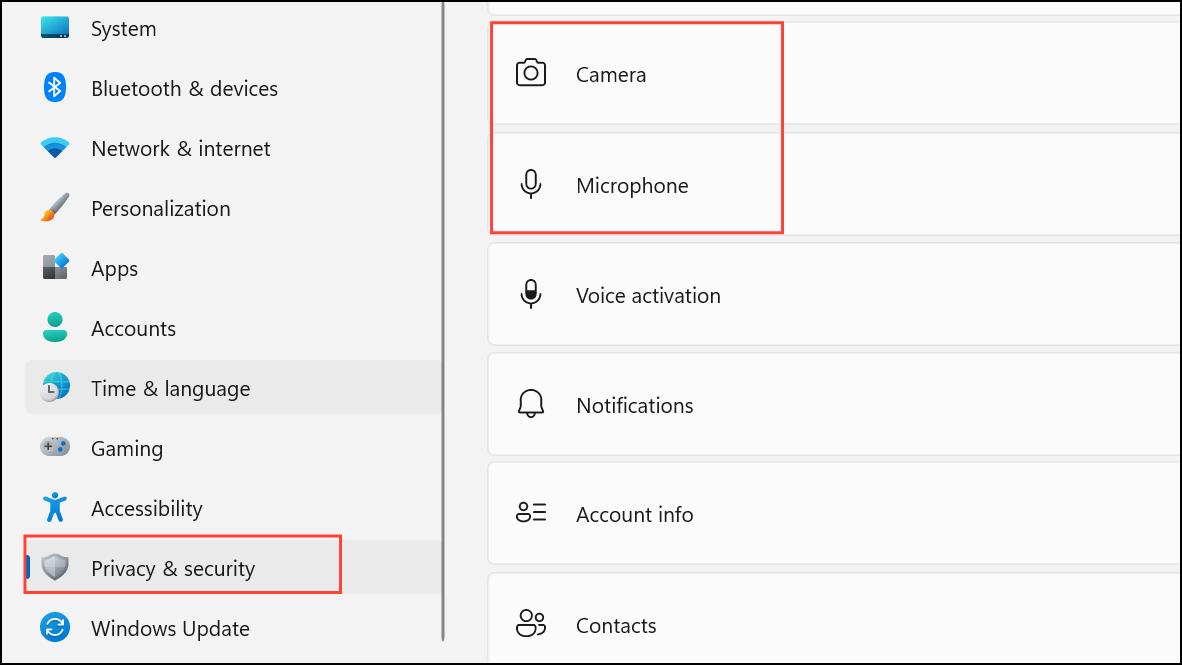
The Privacy & security section in Settings now groups Camera, Microphone, and Location permissions more clearly. It also brings usage information into the main page, making it easier to review which applications have access to sensitive device features.
Microsoft is also expanding the Device Info card on the Settings home page to additional markets. Users signed in with a Microsoft account can see basic information about their computer without navigating through multiple pages.
Why it matters: This is a practical improvement for anyone who wants to understand which applications can access their camera, microphone, and location.
4. Preview Phone Messages Without Opening Phone Link
Windows 11's Phone Link integration is receiving another small convenience improvement.
When a supported phone is connected, users can hover over recent messages or notifications in the Start menu's Phone Link section to preview their content.
Previously, users often had to open the relevant item or application to see more information.
The new preview makes checking recent notifications quicker.
Why it matters: It is useful for people who regularly connect their phones to their computers and want to stay updated without constantly switching devices.
5. Windows Magnifier Gets Better Multi-Monitor Support
Microsoft is introducing several improvements to Magnifier, Windows' built-in accessibility tool.
The most useful addition is independent zoom control for multiple monitors. Users can now assign different magnification levels to individual displays.
For example, one monitor can use 150% magnification while another uses 200%.
The update also introduces viewport locking, which keeps the magnified view fixed on one display while the user moves the pointer to another screen.
A new contrast theme provides another way to make content easier to view without simply inverting its colors.
Why it matters: These changes are particularly useful for people with low vision who work with multiple monitors.
6. Narrator Can Now Read Mathematical Equations
Windows Narrator is receiving a significant accessibility improvement.
The screen reader can now read and help users navigate mathematical equations, formulas, and scientific notation in supported applications and web content.
This includes supported versions of Microsoft Word, PowerPoint, Microsoft Edge, and Google Chrome.
Users can activate math navigation with the Narrator key + Alt + N shortcut and use the arrow keys to explore different parts of an equation.
The feature supports several languages, including English, German, Spanish, Finnish, and Traditional Chinese.
Why it matters: This is an important improvement for blind and low-vision users, particularly students and professionals who work with mathematical or scientific documents.
7. Windows Recovery Can Reuse Saved Wi-Fi Connections
Recovering a Windows computer sometimes requires an internet connection, especially when using online recovery tools.
The November update allows Windows Recovery Environment to reuse eligible Wi-Fi profiles already saved in the main Windows installation.
This means supported computers can connect to a wireless network automatically during certain recovery operations without requiring administrators to configure the network credentials separately.
The feature supports eligible Wi-Fi configurations, including certain certificate-based enterprise networks.
Why it matters: It makes online recovery more convenient, particularly for managed computers and devices that need to download recovery resources.
8. Reinstall Windows 11 Without a USB Drive
Cloud Rebuild is arguably one of the most important additions in this update.
Traditionally, reinstalling Windows often required creating a bootable USB drive, downloading an installation image, or using existing recovery media.
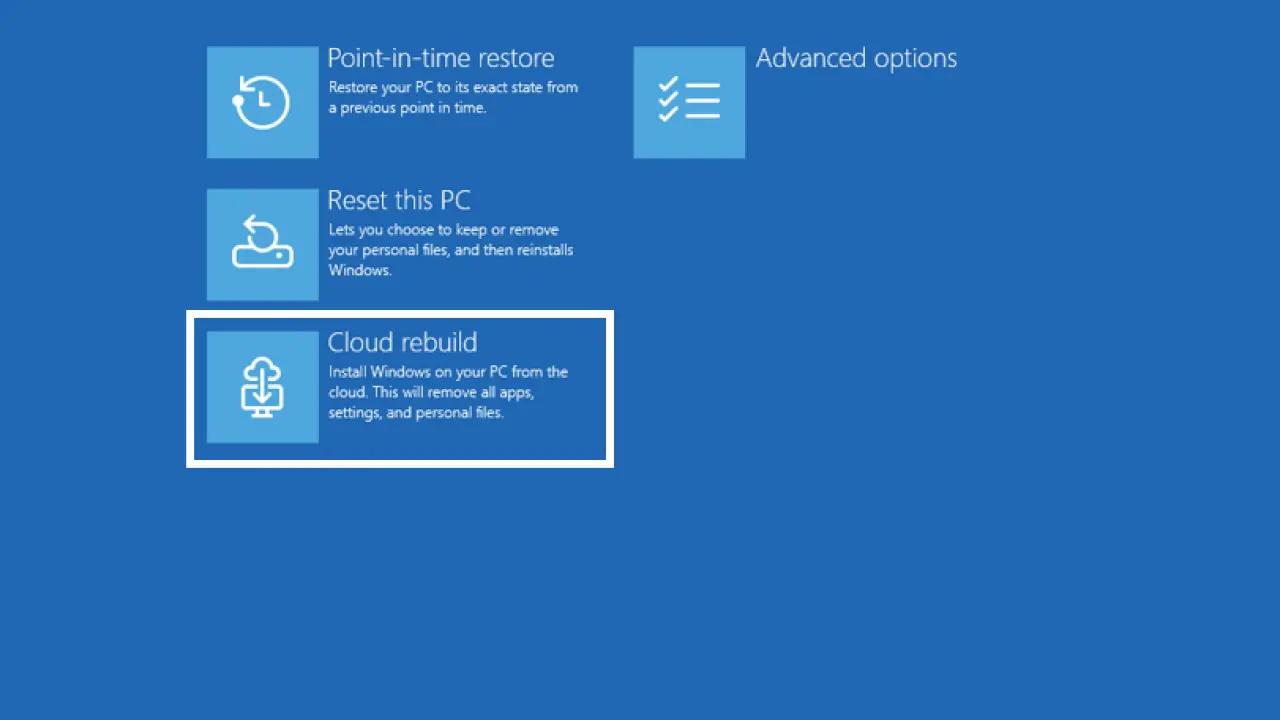
Cloud Rebuild introduces another option: Windows can download a Windows image and compatible device drivers through Windows Update and use them to reinstall the operating system.
To start the process, navigate to:
Settings > System > Recovery > Rebuild PC.
If Windows cannot start, users may also be able to access the feature through Windows Recovery Environment.
The process includes options to remove personal files or use the storage hardware's erase capability to sanitize the drive before reinstalling Windows.
There are important limitations. The computer needs a working recovery environment and an internet connection. The required drivers must also be available through Windows Update. Otherwise, the process may fail, and traditional recovery media could still be necessary.
Be especially careful with the drive-sanitization option because erasing data this way is irreversible.
Why it matters: Cloud Rebuild could make Windows recovery much easier for everyday users. It reduces the need to prepare installation media before reinstalling the operating system.
9. Microsoft Edge Can Launch Faster
Microsoft is introducing Accelerated App Launch to reduce delays when opening Edge.
Previously, Windows could start an additional temporary process to check whether Edge was already running before forwarding a launch request.
The new approach can connect directly to an existing Edge process, removing an unnecessary step.
Microsoft says this can make launching Edge noticeably faster, especially when a computer is handling several demanding tasks.
The improvement requires a supported version of Edge and a compatible Windows 11 update.
Why it matters: This is a welcome performance improvement, particularly for users who frequently open their browser while running other applications.
10. Windows 11 Gets Smarter About Battery Life
The update also improves Adaptive Hibernate on supported devices using Modern Standby.
The system adjusts its hibernation behavior based on the remaining battery charge.
When the battery is above 80%, Windows hibernates less often, helping the computer resume more quickly.
When the battery falls below 10%, Windows hibernates sooner to help preserve the remaining power.
Why it matters: Laptop users may benefit from a better balance between quick wake-up times and battery preservation. The feature depends on compatible hardware.
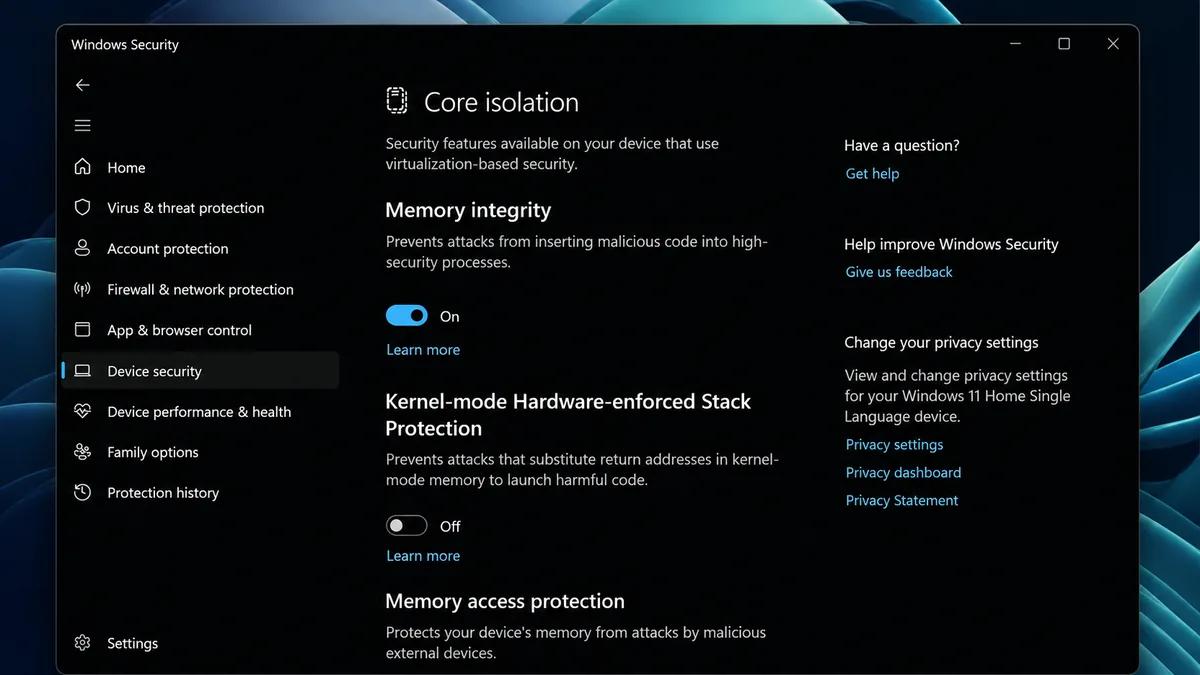
11. Memory Integrity Protection Expands to More PCs
Microsoft is expanding Memory Integrity protection to more eligible Windows 11 devices.
Memory Integrity, also known as Hypervisor-Protected Code Integrity (HVCI), uses virtualization-based security to help protect important parts of the Windows kernel from malicious or untrusted code.
During updates, supported devices may have the protection enabled automatically, depending on hardware capabilities, driver compatibility, and existing user or administrator settings.
However, there is a trade-off. Virtualization-based security can introduce some performance overhead, and incompatible drivers may cause problems on certain computers.
Microsoft says the rollout respects existing configurations when users or administrators have explicitly disabled the feature.
Why it matters: Stronger built-in protection is useful for most users, but compatibility and performance should still be considered on older computers.
Another Important Improvement: Windows 11 Is Getting Better on 8GB RAM PCs
Beyond the individual November features, Microsoft has also been working to improve Windows 11's memory efficiency.
In a November 3 update, the company shared details about performance improvements targeting computers with 8GB of RAM.
Microsoft reported up to 20% better responsiveness and up to 40% faster multitasking in a specific internal test.
The improvements include more efficient memory compression, reduced background memory use, and changes to how Windows prioritizes active tasks.
For example, Widgets now load only when opened on PCs with 8GB of memory or less, saving approximately 200MB of memory commitment while closed.
Microsoft also reported that Edge's inactive tabs enter sleep mode sooner by default, helping reduce memory usage.
These figures come from Microsoft's own testing and should not be treated as guaranteed results for every computer.
The improvements are associated with Windows 11 version 26H2, build 26300.9818 or later. Keeping Windows and supported applications updated is important to receive them.
Should You Install the November Windows 11 Update?
For most Windows 11 users, the November update brings useful improvements rather than a complete change to the operating system.
The customizable context menu makes everyday file management more convenient. Cloud Rebuild provides another way to recover a computer. Privacy settings are easier to review, while the accessibility and security changes improve the experience for specific groups of users.
Laptop owners may also appreciate the improved adaptive hibernation, while users with 8GB RAM PCs should pay attention to Microsoft's ongoing memory optimization work.
However, not every feature will be available immediately. Microsoft distributes some changes gradually, so two computers running the same Windows version may not receive every feature at the same time.
To check for updates, open Settings > Windows Update and select Check for updates.
If you are using a work-managed computer, your organization's update policies may determine when the changes become available.
Final Thoughts
The November 2026 Windows 11 update focuses on making the operating system more practical, accessible, secure, and easier to maintain.
Cloud Rebuild and the customizable context menu are probably the two changes most everyday users will appreciate. The accessibility improvements are equally important for the people who depend on them.
Rather than introducing one dramatic new feature, Microsoft is addressing several smaller problems that affect how people use Windows every day.
As the rollout continues, it will be worth watching how these improvements perform on real-world computers, especially older laptops and systems with limited memory.
The conversation (0)
Different perspectives make better conversations. Keep it thoughtful.
Be the first to share a perspective.