
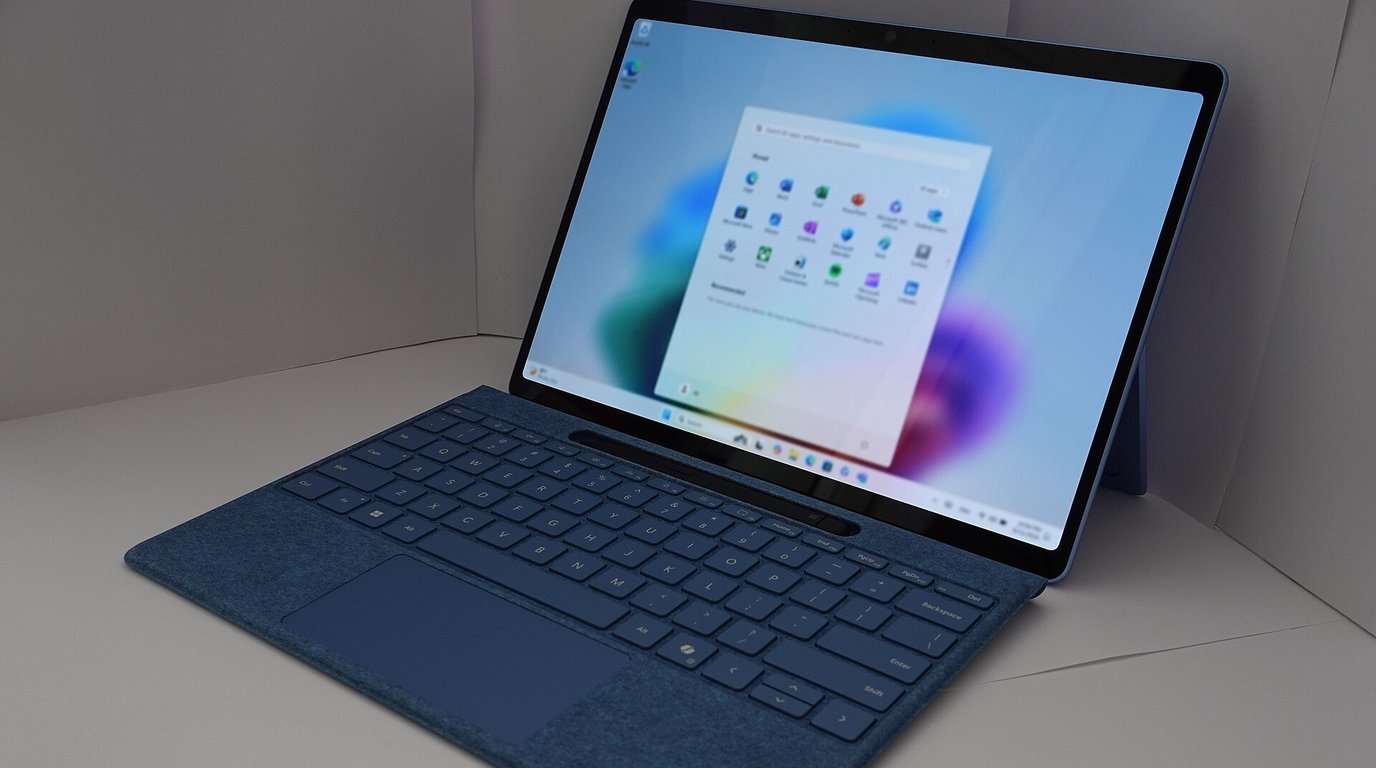
If your Windows 11 battery is draining fast, the quickest fix is to open Settings > System > Power & battery > Battery usage, find the app using the most power, and limit or close it. After that, turning on Energy Saver, switching to a more efficient power mode, and lowering your screen brightness and refresh rate usually make the biggest difference.
You unplug a fully charged laptop in the morning, and by lunch it wants the charger. Or you close the lid at night and wake up to a much emptier battery.
Most of the time, the cause is software and settings rather than a broken battery. But which settings matter? Which apps are to blame? And how do you tell if the battery is simply worn out?
This guide focuses on stopping fast drain. If you want to check how much capacity your battery has lost over time, see our guide on how to check laptop battery health in Windows 11 without extra software first. Here, we will walk through 11 fixes that use only built-in Windows 11 tools, with the exact menu paths and commands from Microsoft's own documentation.
1. Find Out Which Apps Are Draining Your Battery
Before changing anything, find the real cause. Windows 11 keeps a per-app record of battery use.
How to check battery usage per app
- Select Start > Settings > System > Power & battery.
- Expand Battery usage.
- For Battery levels, select Last 24 hours, then select an hour when the battery dropped quickly.
- Look at Battery usage per app to see which apps used the most power, including in the background.
If an app you are not actively using appears near the top, close it. If it keeps coming back because it starts automatically, see Fix 6 below.
2. Limit Background Activity for Power-Hungry Apps
Some apps keep running in the background to sync data and send notifications, which increases battery usage.
How to change an app's background permission
- Go to Settings > System > Power & battery > Battery usage.
- Next to an app that supports it, select More options (the three dots) > Manage background activity.
- Change Let this app run in the background to one of these options:
- Always: The app can always run in the background, which may use more power.
- Power optimized (recommended): Windows balances power savings with notifications and periodic updates.
- Never: The app stops running in the background. You lose its notifications, but this saves the most power.
Not every app offers this option, and Microsoft notes that at least one app must be set to Always if you want your device to stay connected and get app updates.
3. Turn On Energy Saver
Energy Saver replaced the older battery saver in Windows 11 version 24H2 and later. It automatically manages system processes and power use to balance performance with longer battery life.
How to turn on Energy Saver
- Select Start > Settings > System > Power & battery.
- Select Energy saver to expand its options.
- Next to Turn energy saver on when battery level is at, choose the battery level you want.
- To keep it on until you next plug in, set Always use energy saver to On.
You can also toggle the Energy saver quick setting from the battery icon on the taskbar.
What Energy Saver changes
According to Microsoft's documentation, Energy Saver lowers display brightness (controlled by Lower screen brightness when using energy saver) and turns off transparency effects. On low battery, it also blocks background apps you have not allowed and pauses non-critical Windows Update downloads.
Microsoft recommends leaving Energy Saver on all the time for maximum battery life.
4. Switch to the Best Power Efficiency Power Mode
Power mode balances speed against battery life, and Best performance on battery drains it faster.
How to change the power mode
- Select Start > Settings > System > Power & battery.
- Under Power mode, choose an option for On battery:
- Best power efficiency saves battery life.
- Balanced balances performance and battery.
- Best performance maximizes performance.
If you cannot change the power mode, a custom power plan may be active. Open Control Panel > System and Security > Power Options, select Balanced, and try again.
5. Lower Screen Brightness, Refresh Rate and Screen Timeout
Microsoft lists several display settings that help extend battery life, and they are quick to change.

Reduce brightness
Go to Settings > System > Display > Brightness and use the slider to set a lower level. If you see Change brightness automatically when lighting changes or Help improve battery by optimizing the content shown and brightness, you can adjust those check boxes to suit you.
Lower the refresh rate or use dynamic refresh rate
A higher refresh rate gives smoother motion but uses more power.
- Go to Settings > System > Display > Advanced display.
- Under Choose a refresh rate, select a lower rate.
- If your screen supports it, turn on Dynamic refresh rate, which lowers the refresh rate during static tasks such as reading and typing.
Shorten screen and sleep timeouts
Go to Settings > System > Power & battery > Screen, sleep & hibernate timeouts and pick shorter times for Turn my screen off after and Make my device sleep after when on battery.
Tip: Dark mode (Settings > Personalization > Colors > Choose your mode) also reduces screen power use, especially on OLED displays. And Settings > System > Power & battery > Energy recommendations gathers many of these settings in one place. Select Apply all or review each one.
6. Disable Startup Apps You Do Not Need
Apps that launch automatically when you sign in often keep running all day in the background, quietly using battery.
How to turn off startup apps
- Select Start > Settings > Apps > Startup.
- Set the toggle to Off for any app you do not need right away.
You can also right-click Start, open Task Manager, select the Startup apps tab, select an app, and choose Disable. Task Manager also shows the startup impact of each app.
Trimming startup apps also helps your PC boot faster. For more speed-focused tweaks, see our guide on how to make Windows 11 faster with 8 settings you should change.
7. Turn On Your Browser's Energy Saver
The browser often tops the battery usage list, and both major browsers have a built-in battery-saving mode.
Microsoft Edge
- Select Settings and more (the three dots) > Settings > System and performance.
- Under Performance, turn on Energy saver and choose Balanced (recommended) or Maximum.
It limits background tab activity and puts inactive tabs to sleep sooner. Maximum may cause visible slowdowns, such as less smooth video.
Google Chrome
- Select More > Settings.
- On the left, select Performance.
- Turn on Energy Saver.
According to Google, it reduces background tasks and stops eligible CPU-intensive background tabs when you are unplugged or low on battery.
8. Turn Off Wi-Fi, Bluetooth and Other Radios When You Do Not Need Them
Microsoft recommends turning off Wi-Fi and Bluetooth when you are not using them to save battery.
- Open Quick Settings from the taskbar and turn off Wi-Fi or Bluetooth when you do not need them.
- If you need no wireless connection at all, for example when working offline on a flight, go to Settings > Network & internet and turn on Airplane mode.
9. Run a Power Efficiency Report With powercfg /energy
If the settings above have not solved the problem, Windows has a built-in diagnostic that analyzes your system for common energy-efficiency and battery-life problems.

How to generate the energy report
- Close your open apps and documents. Microsoft says the report should be run while the computer is idle.
- Select Start, type cmd, right-click Command Prompt, and choose Run as administrator.
- Run this command:
powercfg /energy
By default, Windows observes the system for 60 seconds, then saves an HTML report in the current folder. Open it in your browser and review the problems it lists, starting with errors.
Check what is keeping your PC awake
If your screen never turns off or your laptop will not sleep, an app or driver may be holding a power request. This command lists them:
powercfg /requests
10. Fix Battery Drain While Your Laptop Is Asleep
If your battery drops overnight with the lid closed, look at what happens during sleep. Many Windows 11 laptops use Modern Standby, a low-power state in which some components can still do background work.
Run a Sleep Study report
Microsoft's SleepStudy tool shows what happened during each standby session and which components were most active.
powercfg /sleepstudy
Run it from an administrator Command Prompt. It creates a file named sleepstudy-report.html in the current folder and covers the last three days by default. To look back further (up to 28 days), add a duration:
powercfg /sleepstudy /duration 7
In the report, look for long sessions with high drain. Microsoft marks a session red when the drain rate reaches 1% per hour or more. Each session lists the "top offenders," the five most active components, which often points to a specific app, driver, or device.
Find out what woke your PC
These two commands show what woke the system last and which wake timers are active:
powercfg /lastwake
powercfg /waketimers
Consider hibernate for long breaks
According to Microsoft, hibernate uses less power than sleep, and when you start the PC again you are back where you left off. It is designed for times when you will not use your laptop for a long period and cannot charge it. Hibernate is not available on every PC, but if it is turned off on yours, you can enable it from an administrator Command Prompt:
powercfg /hibernate on
You can also choose what closing the lid does. Search for Control Panel, open it, and select Power Options > Choose what closing the lid does.
11. Keep Windows, Drivers and Firmware Up to Date
Microsoft's Surface battery guidance lists getting the latest updates as a key step, because driver and firmware fixes can affect how well your laptop manages power.
- Select Start > Settings > Windows Update.
- Select Check for updates, then Download & install anything available.
- Restart if prompted.
Also check your laptop maker's support app or website for BIOS and firmware updates. On Surface devices, Microsoft recommends the Surface app for checking driver and firmware status. To see what else changed in recent builds, read our roundup of the Windows 11 November update's new features.
What If the Battery Itself Is Worn Out?
If you have tried these fixes and the battery still drains quickly under light use, the battery may simply hold less charge than it used to. Microsoft explains that lithium-ion batteries lose capacity over time as they go through charge cycles, so you will need to charge more often.

The best way to check is to compare your battery's design capacity with its current full charge capacity. We cover that step by step in our Windows 11 battery health guide, using the built-in battery report.
If the battery is badly worn, settings can only help so much, and a replacement from the manufacturer or an authorized repair center is the real fix.
Frequently Asked Questions
Why is my Windows 11 battery draining so fast all of a sudden?
A sudden change usually points to something new, such as an app, a busy browser, or a changed power mode. Check Battery usage for the hours when the drop happened to see which app was active.
Is Energy Saver the same as battery saver?
Energy Saver replaces battery saver in Windows 11 version 24H2 and later. It does similar things, such as limiting background activity and lowering brightness, and it can also be set to stay on all the time.
Why does my laptop lose battery while it is asleep?
Many laptops use Modern Standby, which lets apps and devices do some work while the PC sleeps. Run powercfg /sleepstudy to see which components were most active, and consider hibernate if you will not use the laptop for a long time.
Final Thoughts
Fixing a Windows 11 battery that drains fast is mostly detective work. Start with Battery usage, then apply the easy wins: Energy Saver, Best power efficiency mode, a dimmer and lower-refresh screen, and fewer startup and background apps.
If that is not enough, powercfg /energy and powercfg /sleepstudy can reveal driver and sleep problems. And if nothing helps, check your battery health, because no setting can restore lost capacity.
Find the app first, fix the settings second, and check the battery last.
Sources and Further Reading
- Battery saving tips for Windows (Microsoft Support)
- Power settings in Windows 11 (Microsoft Support)
- Manage background activity for apps in Windows (Microsoft Support)
- Change the power mode for your Windows PC (Microsoft Support)
- Configure startup applications in Windows (Microsoft Support)
- Maximize your Surface battery life (Microsoft Support)
- Shut down, sleep, or hibernate your PC (Microsoft Support)
- Install Windows updates (Microsoft Support)
- Learn about performance features in Microsoft Edge (Microsoft Support)
- Energy saver (Microsoft Learn)
- Powercfg command-line options (Microsoft Learn)
- Modern standby SleepStudy (Microsoft Learn)
- Personalize Chrome performance (Google Chrome Help)
Information in this article reflects Microsoft and Google documentation available on November 17, 2026. Menu names and available options can vary by Windows 11 version, browser version, and device manufacturer.
Cover photo: KK IN HK via Wikimedia Commons, CC BY-SA 4.0




The conversation (0)
Different perspectives make better conversations. Keep it thoughtful.
Be the first to share a perspective.